When you run a business alone, there is no team to delegate admin work to, so the repetitive parts of the day — moving data between apps, sending the same follow-up emails, updating numbers in three places — either get automated or they eat the hours you would rather spend on actual growth. The good news is that connecting your tools no longer requires writing code. With Zapier, Make, or n8n you build these workflows by dragging boxes and mapping fields.
This guide walks through seven concrete workflows you can set up over a weekend. For each one I give the exact trigger and action chain, which tool fits it best and why, the realistic free-plan limits and paid pricing as of 2026, and the one gotcha that tends to break it. No generic “automation will change your life” filler — just the specific setups that remove recurring busywork for a solo operator.
What No-Code Automation Actually Is
No-code automation means connecting apps so that an event in one triggers an action in another, without you writing code. You pick a trigger (a new form submission, a new order, an incoming email), then chain one or more actions (add a row to a sheet, send an email, post a Slack message). You have probably used a primitive version already — email filters and out-of-office auto-replies are automation. Dedicated platforms just let you connect any two services and add logic in between.
Three platforms cover almost every solo use case, and the rest of this guide assumes one of them:
- Zapier — the largest app catalog (8,000+ integrations) and the gentlest learning curve. Best first tool.
- Make (formerly Integromat) — a visual canvas with branching, loops, and error handling. Cheaper per step than Zapier for anything multi-stage.
- n8n — open-source and self-hostable, which means unlimited runs for the cost of a small server and full control of your data.
The pricing models differ in a way that matters. Zapier charges per task — every individual action that runs. Make charges per operation, which is similar but its plans pack far more in for the money. n8n’s cloud charges per execution, meaning one full workflow run counts as one unit no matter how many steps it has; self-hosted n8n has no usage charge at all. I will flag which model bites for each workflow below.
Choosing Between Zapier, Make, and n8n

Zapier — start here if you have never automated anything
Zapier’s Free plan gives you 100 tasks per month and limits you to two-step Zaps (one trigger, one action). That is enough to test a couple of simple flows. Multi-step Zaps and premium app access begin on the Professional plan, which starts at $19.99/month billed annually for 750 tasks, scaling up from there. The catch is that “task” counting adds up quickly: a five-action workflow burns five tasks every time it fires, so a busy automation can outgrow a low tier fast.
Make — the value pick for multi-step logic
Make’s Free plan includes 1,000 operations per month but caps you at two active scenarios and a 15-minute minimum interval between runs. The Core plan at $9/month (annual billing) raises that to 10,000 operations, unlimited active scenarios, and scheduling down to the minute. For roughly half the price of Zapier’s entry paid tier you get a visual builder with routers, filters, iterators, and built-in error handling — which is why complex flows usually belong here. The trade-off is a steeper learning curve; your first scenario will take a bit of trial and error.
n8n — maximum control, no per-run fee
n8n is open source. The self-hosted Community Edition is free with unlimited executions — you only pay for the server it runs on, which can be a few dollars a month on a small VPS. That makes it the obvious choice for high-volume or always-on automations that would rack up tasks elsewhere. n8n also added an AI/agent layer and supports custom code nodes when a no-code step is not enough. The downsides: you own updates, backups, and uptime, and the managed n8n Cloud now starts around €20/month (2,500 executions) with no permanent free tier — only a trial. Note that n8n counts a whole workflow run as one execution, so a polling trigger that checks every few minutes can quietly burn through a cloud quota; self-hosting sidesteps that entirely.
7 No-Code Automation Workflows You Can Build This Weekend
These are ordered from simplest to most involved. Each one names the trigger, the action chain, the best-fit tool, and the gotcha that most often trips people up.
Workflow 1: Lead capture and instant follow-up
Trigger → action: New form submission (Google Forms, Typeform, or a Tally form) → append a row to Google Sheets → route by region or interest with a filter/router → send a templated reply via Gmail or your ESP.
Best fit: Make, because the routing step needs branching and Make handles that on its $9 plan without jumping a pricing tier. On Zapier this requires multi-step Zaps (Professional). The logic: a lead that gets a reply in minutes is far more likely to convert than one answered the next day, so the speed is the whole point.
Gotcha: A short delay (one to three minutes) before the email feels more human than a reply that lands the instant someone hits submit. Also map the form fields explicitly — if you rename a form question later, the mapping silently breaks.
Workflow 2: Content scheduling pipeline
Trigger → action: A content item’s status changes to “Ready to Publish” in Notion (or Airtable) → the platform reformats it per channel → it is scheduled through Buffer or posted directly to each network.
Best fit: Make or Zapier, depending on how many channels you push to. If you only post to one or two networks, Zapier’s free two-step flow can cover it; once you fan out to several platforms with different formatting, Make’s router keeps it on the cheaper plan.
Gotcha: Each network has different length and media rules. Build a separate formatting branch per platform rather than one generic post, or your long-form text gets truncated mid-sentence on the short-form network.
Workflow 3: Invoice generation and payment follow-up
Trigger → action: An order is marked “Confirmed” in Airtable → an invoice is created in your accounting tool (Stripe, QuickBooks, or similar) → it is emailed to the customer → if payment is not recorded within a set window, a polite reminder sequence fires.
Best fit: Make for the branching reminder logic, or n8n if invoice volume is high enough that per-operation billing would hurt. The unpaid-reminder branch is the part that actually earns its keep — chasing late payments by hand is exactly the kind of task that slips when you are busy.
Gotcha: Use the payment processor’s webhook (e.g. “invoice paid”) to close the reminder loop, not a fixed timer. If you rely on a date check alone, customers who pay early can still receive a “you haven’t paid” nudge.
Workflow 4: Support email triage and routing
Trigger → action: A new email arrives in your support inbox → it is categorized (order issue, product question, shipping, complaint) → urgent items ping you on Slack → everything else lands on a prioritized Notion or Trello board you review on a schedule.
Best fit: n8n or Make with an AI classification step. Both now offer AI modules that read the message and assign a category, which removes the brittle keyword rules older setups depended on. n8n’s per-execution billing is friendly here because the whole triage runs as one execution.
Gotcha: Do not let the automation auto-reply to complaints. Route, categorize, and notify — but keep a human writing the actual response to anything sensitive, or you will eventually auto-send a canned message to an angry customer.
Workflow 5: Inventory sync across sales channels
Trigger → action: A sale happens on any channel (your WooCommerce or Shopify store, a marketplace, a wholesale order) → a master count in Airtable or a database is decremented → the new count is pushed to every other channel.
Best fit: n8n, hands down. Inventory syncs are high-frequency and often near real-time, which is precisely the scenario where Zapier’s per-task and Make’s per-operation billing get expensive. Self-hosted n8n runs these unlimited.
Gotcha: Beware sync loops — if channel A updates the master, which updates channel B, which fires its own “stock changed” event back to the master, you can create an infinite loop. Add a guard so a sync-driven update does not re-trigger the chain.
Workflow 6: Scheduled weekly report
Trigger → action: A scheduled time each week → pull sales, analytics, and email/social metrics from their sources → write them into a Google Sheets or Slides template → email the finished summary to yourself.
Best fit: Make for the multi-source pull, or n8n if you want the report to run on a self-hosted schedule with no quota concern. A consistent, identical-format report each week is what makes trends visible — the value is the repeatability, not the data entry it saves.
Gotcha: Mind each data source’s rate limits and time zones. Analytics APIs sometimes lag a day, so pull “last completed week,” not “the current week,” or your latest numbers will read as suspiciously low.
Workflow 7: Product launch coordinator
Trigger → action: A product is marked “Launch Ready” in Notion → listings are drafted across sales channels → social announcements are scheduled across the launch window → an announcement email is queued to your list → a tracking sheet is created to monitor results.
Best fit: Make or n8n, because this is a long multi-branch scenario and you want strong error handling — if step three fails you do not want steps four and five firing on stale data. This is the most advanced workflow here; build and test each branch in isolation before wiring them into one chain.
Gotcha: Add a manual approval checkpoint before anything goes public. A fully unattended launch automation will happily publish a typo or a wrong price to every channel at once. A single “approve to proceed” step is cheap insurance.

A Quick Decision Framework
You do not need all three platforms. Most solo operators run one, occasionally two. Here is how I decide:
- Never automated before? Start on Zapier’s free plan with a single two-step flow. The simplicity is worth the higher per-task cost while you learn how triggers and actions behave.
- Need branching, multiple actions, or tight cost control? Use Make. The $9 Core plan covers most multi-step solo workflows, and the visual canvas makes debugging far easier.
- Running high-frequency or always-on automations? Self-host n8n. Unlimited executions on a cheap server beats watching a task counter, and you keep your data in-house.
A reasonable path is to prototype on Make’s free tier, then move the heavy, high-volume jobs to a self-hosted n8n instance once you understand which workflows actually run constantly.
Mistakes That Break Automations
Automating a process that is already chaotic
If a task is inconsistent when you do it by hand, automating it just produces faster inconsistency. Write down the exact steps first, fix the process, then automate the fixed version.
Building everything at once
Pick your single biggest recurring time sink, automate only that, and live with it for a week before adding the next. Five half-broken workflows are worse than one reliable one. Once one workflow is solid, it is worth stepping back to see how it fits the wider solopreneur tech stack so each tool you add actually connects to the rest.
No failure notifications
Connections expire and apps change their APIs. Without an alert you can lose days before noticing a workflow stopped. Every platform here can send a Slack or email message on failure — turn it on for each workflow.
Ignoring data formatting
Mismatched formats are the most common silent break: a date arriving as “March 15, 2026” when the next app expects “2026-03-15,” or a phone number with a country code in one app and without it in another. Add a formatting step between apps; it takes minutes and prevents hours of debugging.
Not documenting what you built
Months later you will not remember why a particular filter exists. Keep a one-paragraph note per automation: what it does, why, the key settings, and what to check if it breaks.
Letting an automation touch records it only needs to read
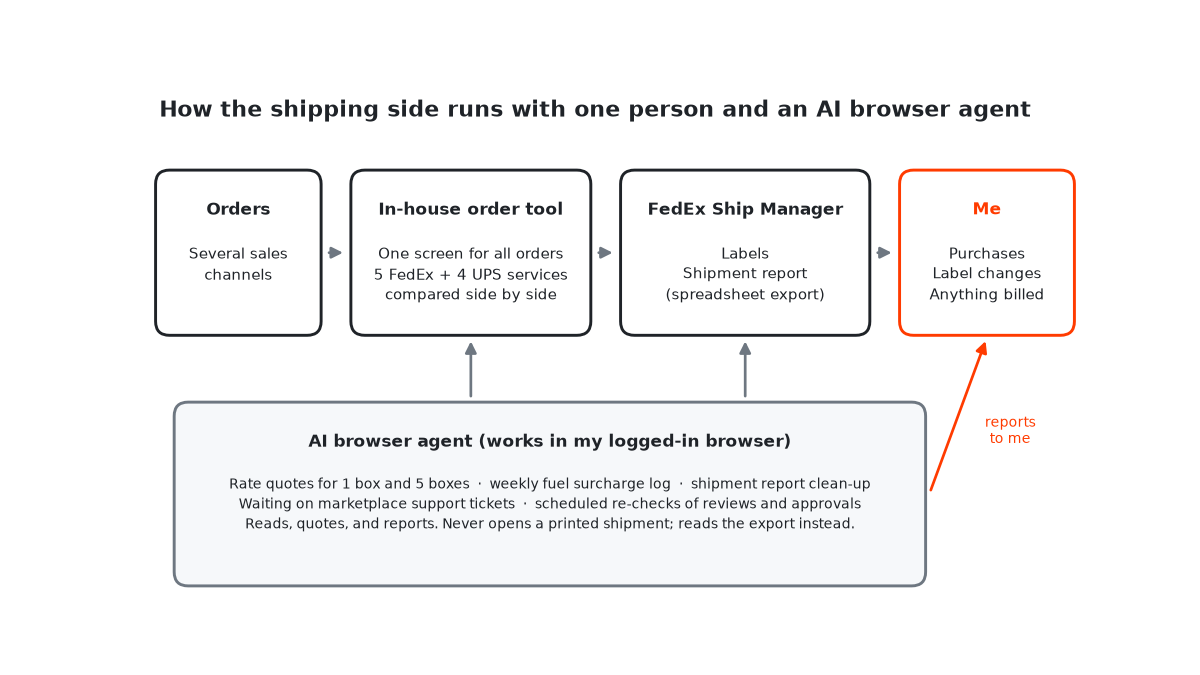
If a step only needs information, give it a read-only source. In my shipping account, opening an already-printed shipment with “view” can start an edit that cancels its label and issues a new tracking number. Every automation of mine now reads the downloadable shipment report instead (the full setup).
Silent wrong answers
The worst failures don’t throw errors. During one long run my carrier login expired quietly, and the rate checks kept returning numbers: the logged-out public prices instead of the prices for my account. The only clue was that my account name had disappeared from the page header. Add a check that the session is the one you expect before you trust any result.
Your First Automation in 30 Minutes
- Pick one repetitive task — the thing you do every day or week that makes you mutter “there has to be a better way.”
- Write the steps down as “when X happens, do Y, then Z.” Keep it under five steps.
- Sign up for the free tier of Make or Zapier.
- Build the basic flow: choose the trigger app, the action app, and map the fields. Skip conditional logic for now.
- Test with real data and confirm dates, names, and numbers come through correctly.
- Turn it on, enable failure alerts, and write your one-paragraph note.
Where to Start
You do not need to automate your whole operation at once. Pick the single workflow above that maps to your biggest recurring annoyance — lead follow-up, invoice chasing, inventory sync — and build just that one this weekend. Use Make’s free tier if you are unsure where to begin; it gives you enough room to build several real automations before you spend anything.
For more practical, no-fluff notes on running a one-person web business with automation, join the nomixy newsletter.